Macintosh Compatibility
macOS Catalina Users
Apple has updated the operating system to only run 64-bit applications. All of our games for Macintosh are 32-bit and will not run on Catalina or newer versions of MacOS.
macOS Sierra Users
Apple has enhanced the security of macOS and for apps that are not purchased from the Apple App Store you need to confirm that you want to open the application. In addition the app must be in your applications folder. If you have dowloaded the title, open the .dmg file and then drag the application to either the main Application folder or the Application folder for a user. Note: If you see an arrow on the icon, you have copied an alias to the file and it won’t work. If you have a CD, drag the icon from the CD to an Applications folder.
OSX El Capitan (and maybe Yosemite)
When opening Client Manager a dialog box may appear that says you need to install a legacy version of Java. Follow the link to the Apple website or click here. Download the .dmg file and run the installer. If you get an error saying that a newer version of Java is installed, then follow the link the Oracle site and install the latest version of Java—Java 8 when this note was written. Install it and then try again with the legacy version.
OSX Lion and Mountain Lion
When Apple released OSX Lion they made some changes that prevent most of our titles from running. All versions of Client Manager, Speech Visualization, Sight Words DVD and Articulation IV will run on OSX 10.7 and above. New versions of the rest of our software will run on OSX 10.7 and above. Several titles will not run on newer versions of OSX—Artic Games R, S, and L, Its a... games, and Everyday Language. Compatible titles have an L next to the version number on the CD. Details on upgrading are found at the Replacement Program page. If you have a title that is not yet updated, give us a call or drop us an email (Tech-Support @ our domain name) and we’ll move it up in our conversion priority list.
Very old versions of our software and OSX
Very old versions of our CDs will not run on OSX. OSX compatible software has a large game icon and three smaller icons for the manual, license, and registration. If the CD opens up with lots of little folders, then it is not OSX compatible. We offer an inexpensive upgrade program. Details are found at the Replacement Program page.
OS X—Classic Mode
Very old versions of our software will run in classic mode on OSX. They will run on OS X Panther version 10.2.5 and higher, OSX Jaguar 10.3, and OSX 10.4 Tiger. OSX 10.5 Leopard and above do not have a Classic mode so the software will not run.
Macintosh Troubleshooting
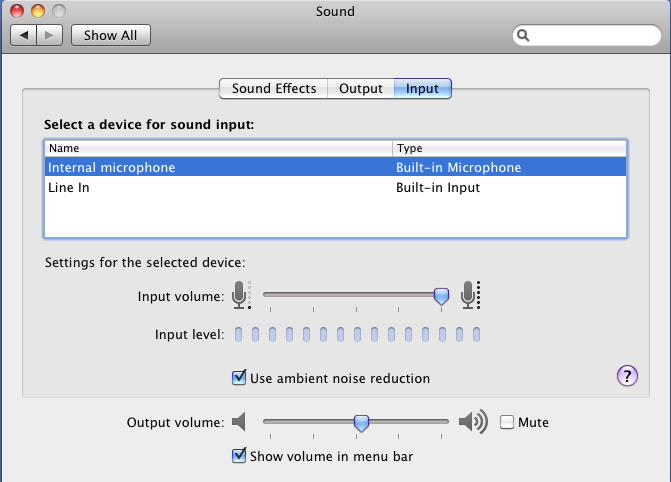
We’ve only had one tech support question specific to OSX and it involves sound recording. If you are using an external microphone you may have to open the Sound item in the System Preferences and change the input from “internal” to the microphone (it will usually be listed by name).
Using the Record Buttons
Many of our titles use buttons that behave the same way as buttons on a tape recorder. Click on the round red button and then release it. That starts the recording and the rectangle turns from gray to red. Say your sound. Then click on the red rectangle to stop the recording. The arrow turns green and you can play back your recording. You can play back your recording as many times as you want. When you go to the next page it is erased. You can record over the existing recording by repeating the process.



Recording sound on laptops
Macintosh laptops have good microphones but because they are so close to the computer, you pick up noise from the computer fan. Starting with OS 10.5 Leopard there is a checkbox in the sound control panel that improves the sound tremendously. Click on the Use ambient noise reduction checkbox and slide the volume control for the microphone all the way to the right. You should be able to record voices without a lot of background noise and without having to be close to the laptop.
Speech Visualization Models aren't showing up.
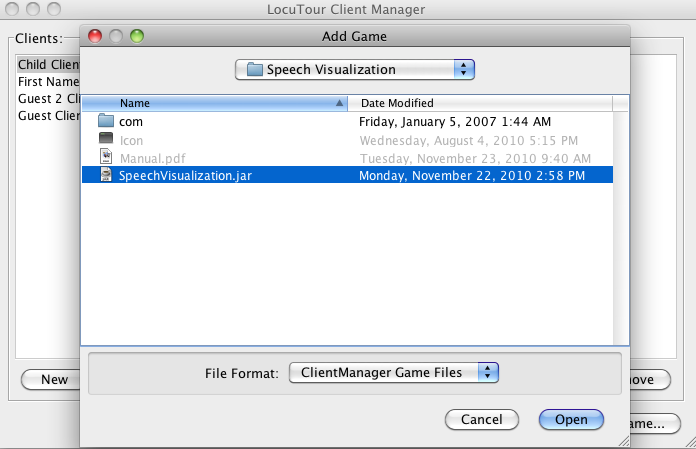
Sometimes Client Manager doesn't know where to find the speech models so you need to teach it where they are. When you first launch Client Manager, go to the bottom right corner and click on Launch Game then Add Game
A dialog box will pop up with a bunch of files and folders listed. Open the folder where you have copied the Speech Visualization game (e.g. Desktop or Applications). Open the Speech Visualization folder. Then click on the file Speech Visualization.jar. The Open button will highlight. Click on it and Client Manager will be able to find the models.
Client Manager and Articulation
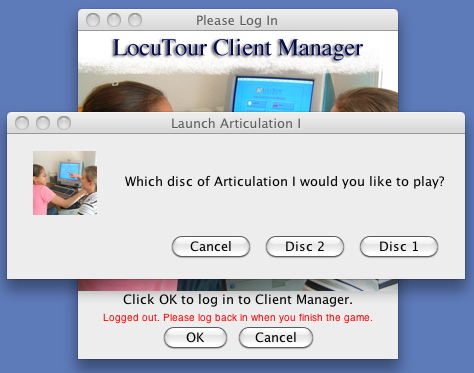
Client Manager needs to know where each LocuTour game is located on your hard disk in order to launch the game. Normally, you add the game from the Launch button and then Client Manager can find it. It’s a little different for Articulation I. Artic I is a two-disc set and both applications must be in the same folder (or on the Desktop) for Client Manager to find them. If you let Client Manager know where Disc 1 is located, it will find Disc 2 when you run Client Manager. Follow the steps above for Speech Visualization except look for the folder with the Articulation 1 application.